
*WARNING: Unlike updating the myCNC software, the firmware CANNOT be downgraded after a reflash. The myCNC team recommends reflashing the control board firmware as a last resort only, and recommends seeking an explicit confirmation from the support team that the firmware reflash is warranted in order to avoid issues.*
*NOTE: Make sure to select the firmware for the correct version/revision of your board! Firmware for ET10 boards (R1-R3) and ET10 boards (R4-R5, also known as the ET12) are *DIFFERENT.* Flashing incorrect version of the firmware will result in a non-functional board. If you’re unsure of your board version, please contact myCNC Technical Support prior to the reflash:*

—
myCNC-ET10 reflashing procedure may take about 5 minutes.
To reflash the board
1. Unplug 24V DC power supply and detach ET10 controller from Breakout board
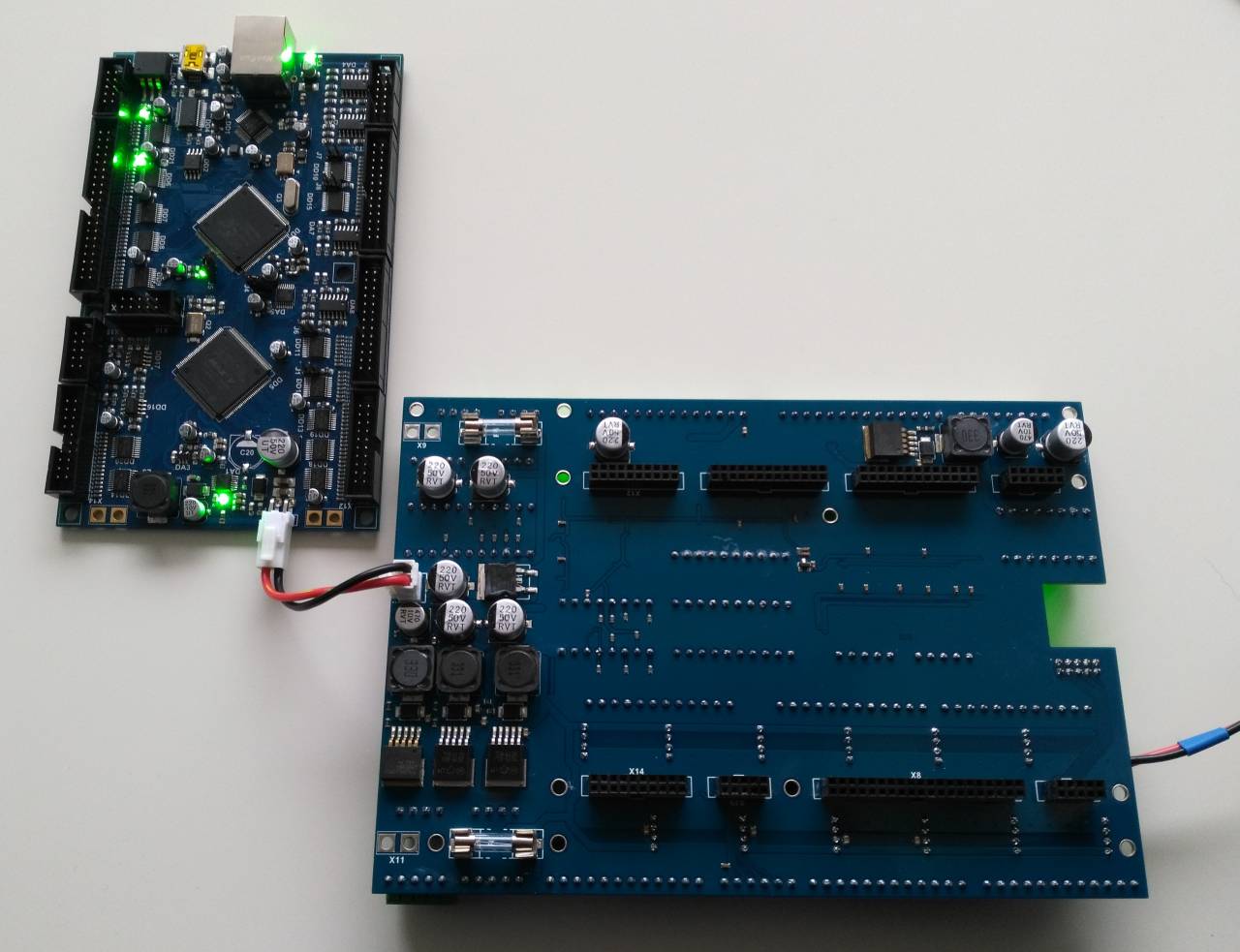
2. Plug 24V DC supply
3. Short power cable between ET1 and Breakout leave connected.
4. Plugin mini-USB cable to ET10 & Host Computer with myCNC installed
5. Close jumpers J4(reset) & J5)programming) on myCNC controller board
6. Open(remove) J4(reset) jumper.
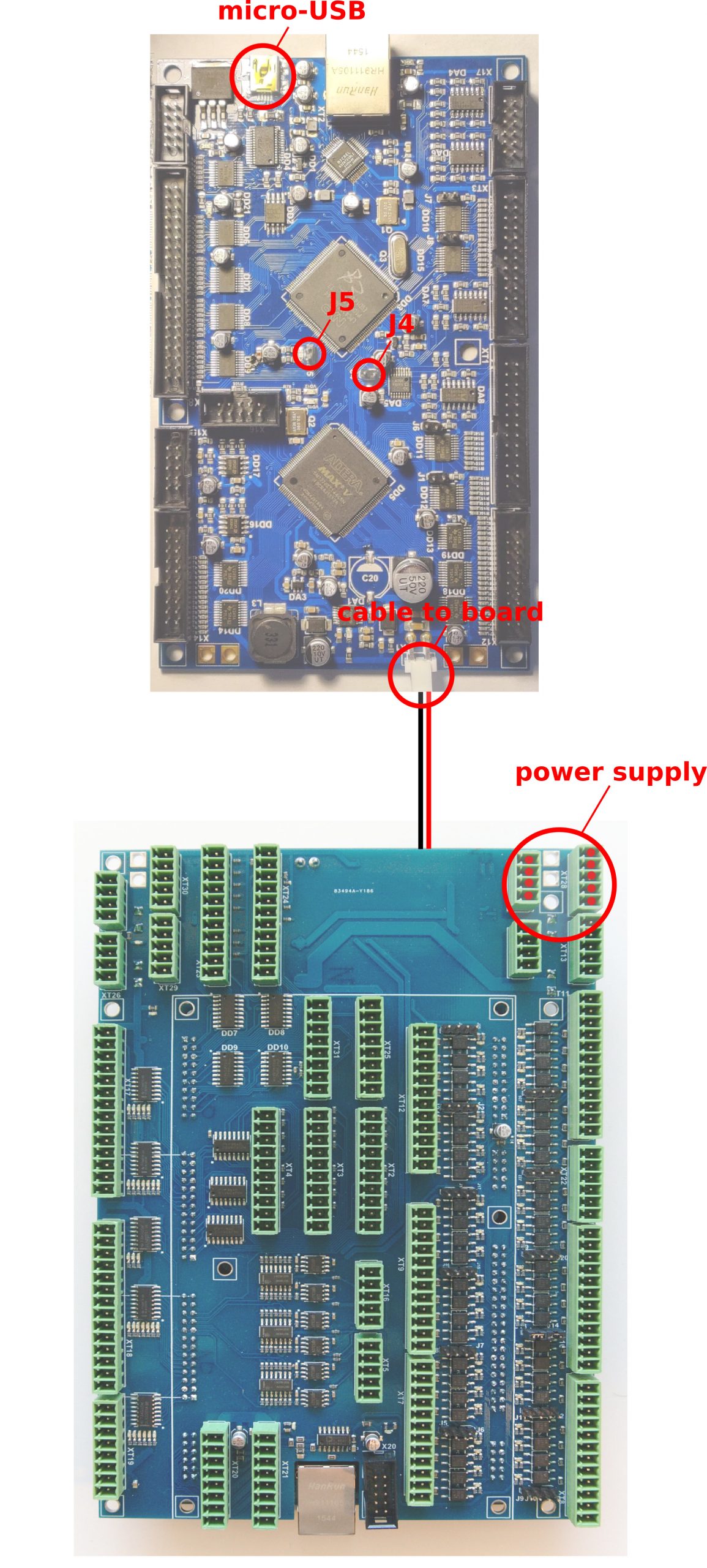
7. Open myCNC software on Host computer,
Configuration Tab -> Support Tab
“Select board” set to “myCNC-ET10”
Select “Firmware version” from “Release”, “Night build” or “Testing”
“UART port” select port with FT232 attached
Baud Rate set to “115200” for ET10; other baudrate can be selected in case of problems on 115200 speed
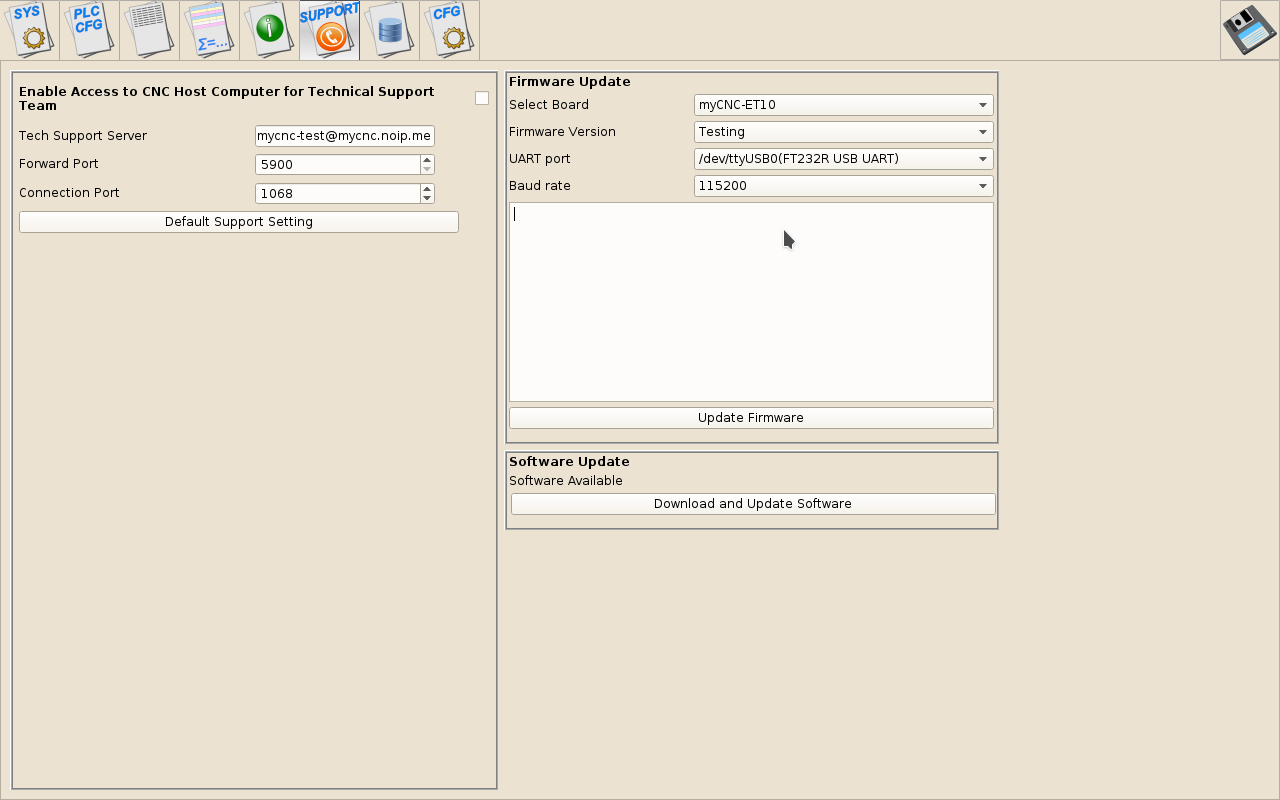
8. Press “Update Firmware” button, Firmware download and reflashing process will be started.
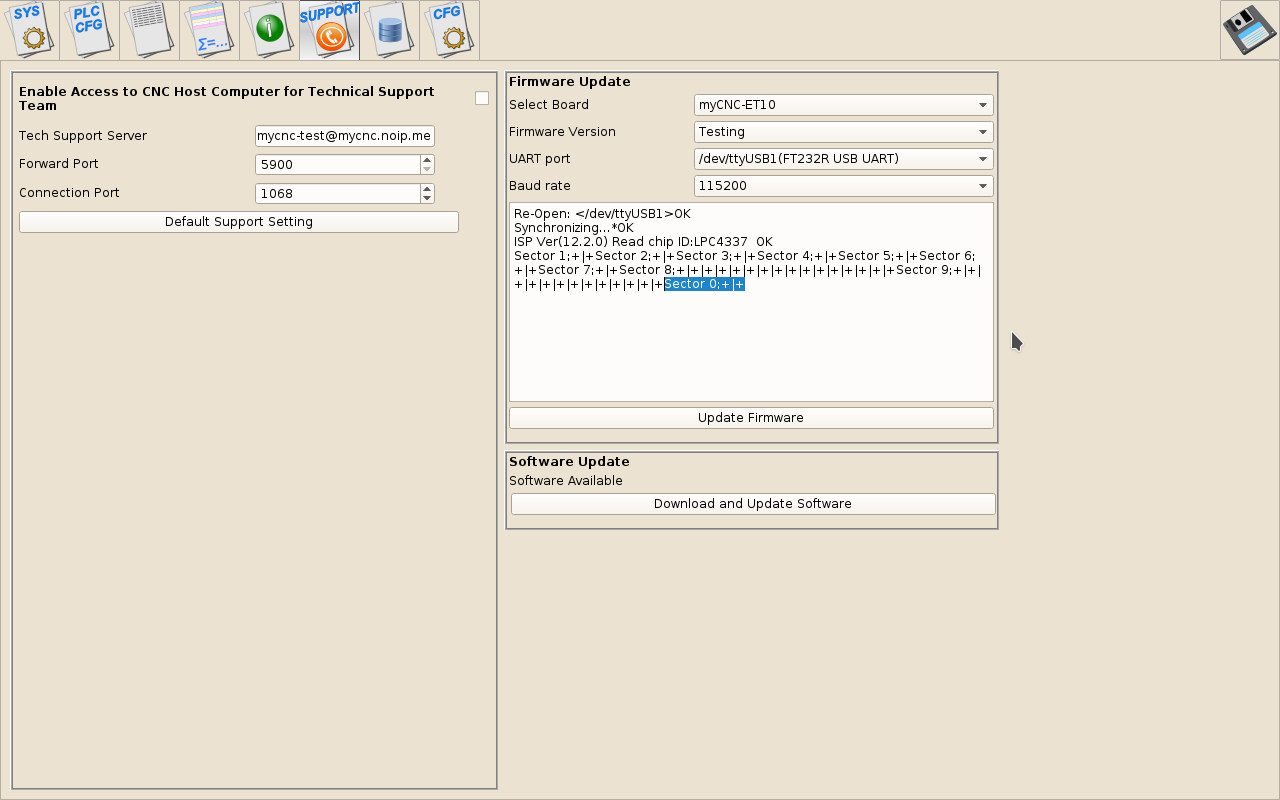
9. Sector 0 will be written at the end of process, so message in debug window “Sector 0; +” means reflashing process finished successfully.
Remove all jumpers (J4, J5), assemble TE10 and Breakout and restart the board.
If reflashing process failed, please repeat sequence from #5